

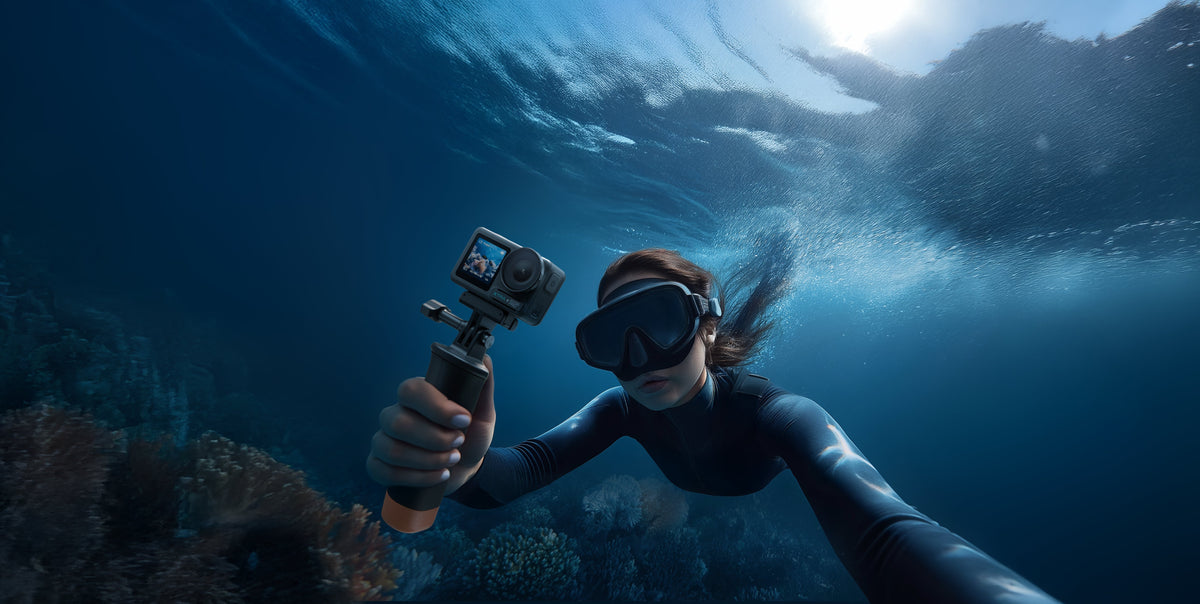
A good snorkeling video starts before the camera touches the water. Set the camera while your hands are dry, inspect every cover, confirm storage and battery status, and attach a float or tether that matches your setup. These steps reduce avoidable problems and let you concentrate on framing once you are in the water.
This guide focuses on preparation and handling. If you are still choosing a camera, read our separate guide to the best action camera for snorkeling without a case. If you already own an action camera, use the checklist below before each swim.
Prepare the Camera on Land
Complete the setup away from spray, sand, and wet towels. Opening a battery or USB C cover beside the water makes it easier for moisture or debris to reach the compartment.
- Charge the battery and confirm the camera powers on normally.
- Back up footage you want to keep. Formatting storage permanently deletes its contents.
- Check the remaining space in internal storage or on the microSD card.
- Clean the lens protector with a suitable lens cloth. Look for sand, salt residue, cracks, or a loose protector.
- Inspect the battery door and USB C cover. Close each one completely before the camera enters the water.
- Attach the camera to a compatible float, grip, or tether and pull gently on every connection to confirm it is secure.
Choose the Recording Setup Before You Enter
Water and wet fingers make menu changes slower. Select the recording mode, field of view, and stabilization on land, then record a short test clip. Review the clip for framing, exposure, lens smears, and unwanted movement before starting the swim.
Resolution and Frame Rate
XTRA Edge Pro records up to 4K at 60 frames per second. A higher frame rate can preserve more motion detail when fins, waves, or fish move quickly, but it also changes storage use and the look of the footage. Choose the setting that fits your editing plan and available light, then verify it with a brief near surface test.
Stabilization and Field of View
A wide field of view can help capture a nearby reef scene, but distant subjects may appear smaller. Move closer only when it is safe and allowed, and avoid contacting coral or wildlife. Keep camera movement slow and let the subject cross the frame instead of chasing it.
On XTRA Edge Pro, MotionMaster provides electronic stabilization. TiltGuard supports 1080p, 2.7K, and 4K video at up to 60 fps in 16 by 9. The 360 Lock mode is available for 1080p and 2.7K video at up to 60 fps in 16 by 9. Confirm that the selected mode supports the stabilization option you plan to use.
Storage and Clip Length
XTRA Edge Pro includes 45 GB of built in storage and supports microSD cards up to 1 TB. XTRA recommends U3, A2, V30, or faster cards. Short, intentional clips are easier to review and reduce the chance of filling storage during a long swim.

Secure the Camera for Open Water
A waterproof camera can still be lost. Use a compatible tether connected to a secure mounting point, and add a float that can support the camera and attached accessories. A float that works for a bare camera may not support a larger grip, frame, light, or housing.
- Keep the tether short enough to control the camera without creating a loose loop that can snag on equipment.
- Check that the tether does not rub against a sharp edge or block a button, door, microphone, or screen.
- Test the completed setup in calm, shallow water before taking it into stronger current or deeper water.
- Do not chase dropped equipment when conditions make retrieval unsafe.
Know When to Add a Waterproof Housing
XTRA Edge Pro is rated waterproof to 20 meters without a case when the battery door and USB C cover are fully closed and the glass lens protector is securely tightened. XTRA recommends a waterproof case for prolonged underwater recording or environments with strong water flow or pressure. Do not use the camera in hot springs, corrosive liquids, extreme underwater conditions, or unknown liquids.
The stated depth is a product limit under specified conditions. It is not a target depth and does not replace judgment about the location, duration, entry method, current, equipment condition, or your ability in the water. Confirm the rating and instructions for any housing separately.
Use a Simple Water Entry Routine
- Turn on the camera while you are dry and confirm the correct mode, battery level, and available storage.
- Check the lens once more for fingerprints, sunscreen, or water spots.
- Confirm the battery door, USB C cover, and lens protector are fully secured.
- Pull test the mount, tether, and float.
- Enter in calm, shallow water and record a short clip near the surface.
- Review that clip before moving farther from shore or starting the main session.
Film Short and Deliberate Clips
Underwater scenes lose contrast and color as distance increases. Keep the camera steady, approach subjects slowly, and frame one clear subject at a time. Start recording before the main action enters the frame, hold the shot for a few seconds, and finish with a clean exit. This gives you clips that are easier to edit than one continuous recording of the entire swim.
Stay aware of swimmers, boats, waves, and local rules while filming. The camera should remain secondary to safe movement and situational awareness.
Rinse Dry and Back Up After the Swim
Salt and sand can remain around doors, buttons, and lens edges after the camera leaves the water. Keep every cover closed until the exterior is clean and completely dry.
- Follow the current XTRA care instructions and rinse the closed exterior with clean fresh water after salt water use.
- Dry the camera with a soft cloth and allow it to air dry fully.
- Inspect the edges of the lens protector, battery door, and USB C cover for residue.
- Open a compartment only after the exterior and surrounding area are dry.
- Back up important footage before deleting clips or formatting storage.
XTRA Edge Pro Setup Reference
| Official specification | Setup implication |
|---|---|
| 20 m bare camera waterproof rating | Close the battery door and USB C cover completely and tighten the glass lens protector before water use. Add a compatible housing for prolonged recording or strong flow or pressure. |
| Up to 4K 60 fps | Select the recording mode on land and confirm it with a short test clip before the main swim. |
| MotionMaster stabilization | Choose a supported stabilization mode for the resolution frame rate and aspect ratio you plan to record. |
| 45 GB built in storage | Check remaining time before entering the water and back up important clips after the session. |
| microSD support up to 1 TB | Use a compatible U3 A2 V30 or faster card and format only after backing up required files. |
Frequently Asked Questions
What should I check before snorkeling with an action camera
Confirm the recording mode, battery level, available storage, lens condition, and every waterproof cover. Attach a compatible tether and float, then test the full setup in calm, shallow water.
Can I snorkel with XTRA Edge Pro without a case
XTRA Edge Pro is rated waterproof to 20 meters without a case when the battery door and USB C cover are fully closed and the glass lens protector is securely tightened. Use a waterproof housing for prolonged underwater recording or strong water flow or pressure, following the current product instructions.
Which XTRA Edge Pro stabilization mode works with 4K 60 fps
TiltGuard supports 4K video at up to 60 fps in 16 by 9. MotionMaster is the camera's electronic stabilization system. Check the on camera options because available settings vary by shooting mode.
When can I open the battery door after snorkeling
Wait until the closed exterior has been rinsed as directed and is completely dry. Opening a cover while water salt or sand remains around it can introduce moisture or debris into the compartment.
Finish the Setup Before the Swim
A reliable snorkeling setup comes from repeatable preparation. Make the recording choices on land, secure the camera, start with a shallow test, and keep every cover closed until the camera is clean and dry after the swim.
Explore XTRA Edge Pro specifications and current availability.
Explore cameras and kits
Explore XTRA EDGE. Compare EDGE and EDGE PRO action cameras.

Leave a comment
This site is protected by hCaptcha and the hCaptcha Privacy Policy and Terms of Service apply.